
Guides / Computing costs and local AI
An SSD, more memory and a gigabit switch: measuring three upgrades to our patchwork lab
We moved a 2017 iMac onto an SSD, doubled a 2014 laptop's memory and cabled three machines to a switch, then timed the jobs the lab really runs.
Engineering note
Filed by the Office of Steampunk DevSecOps, our fictitious department for salvaged hardware, free-token pressure tests and moving work between our own machines and the cloud. About the office
CTDS Local AI Lab — Part 5: the baseline for everything that comes next.
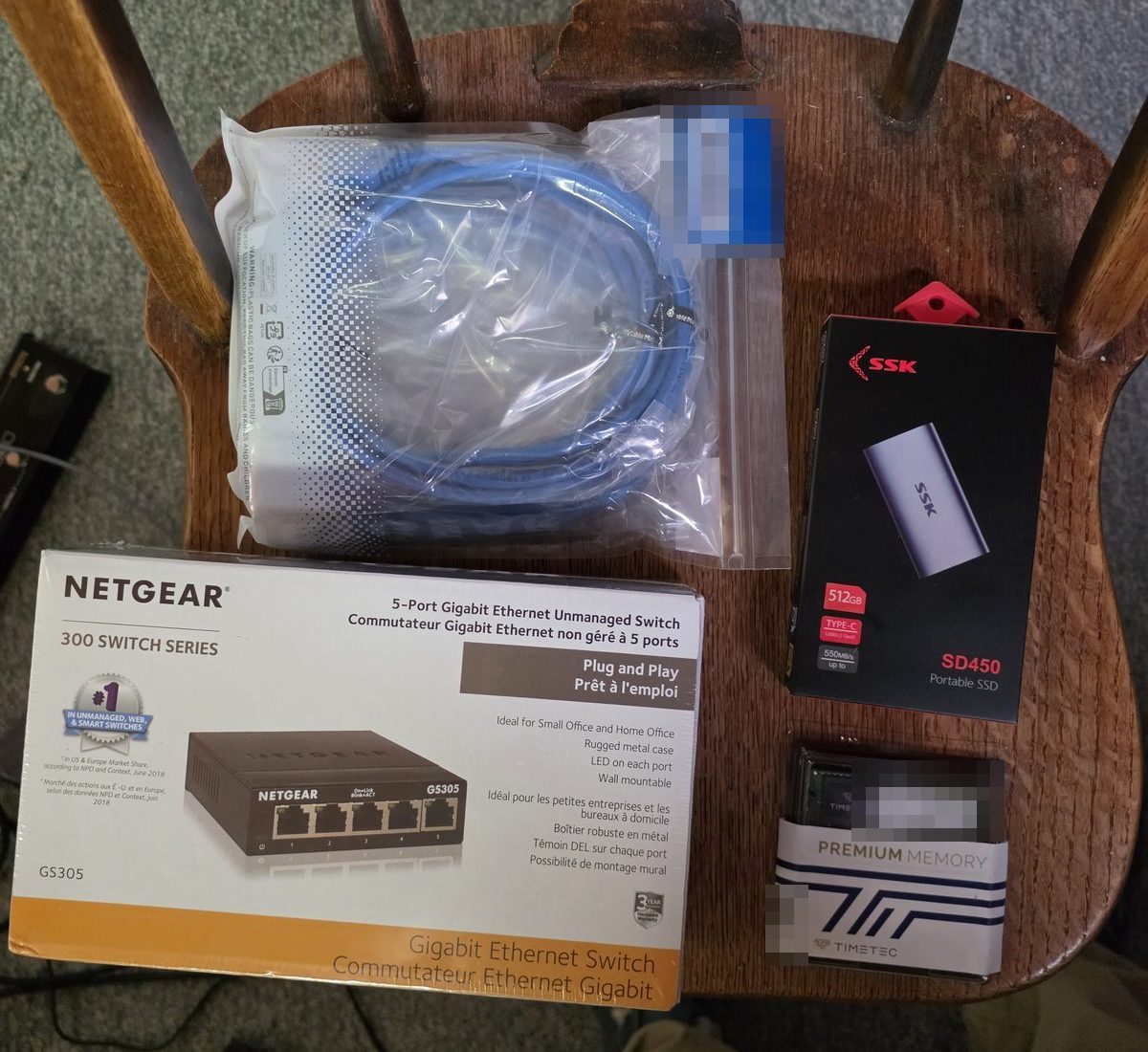
Our lab is a patchwork: a desktop tower (Part 1), a 2017 iMac turned Ubuntu server (Part 2) that shared a model with the tower over Wi-Fi (Part 3), and two retired phones running Linux (Part 4). This week a 2014 Dell Latitude joined them, along with a portable SSD for the iMac, a 16 GB memory kit for the Latitude and a five-port gigabit switch.
What we'll show: what each upgrade changed, measured before and after on the same jobs, including one that showed no benefit in these runs. These numbers are the baseline for Part 6, where we go back to running models across these machines.
Why we measured scripts, not models
Timed AI sessions that wake up to check things re-read their whole context every time, so we have been moving routine checks (site and DNS watches, a nightly repository copy, build-runner health) into small deterministic scripts on these machines. So this round times that kind of work, not token speed.
Our timing script runs two jobs five times each, clearing the disk cache before every run:
- tests: the scripts' own test suite, 388 tests. It is mostly CPU and start-up cost.
- mirror: a full copy of our repository from a local 163 MiB bundle, checked and bundled again. It is disk-heavy, with no network.
We report medians, with the repository pinned to one commit.
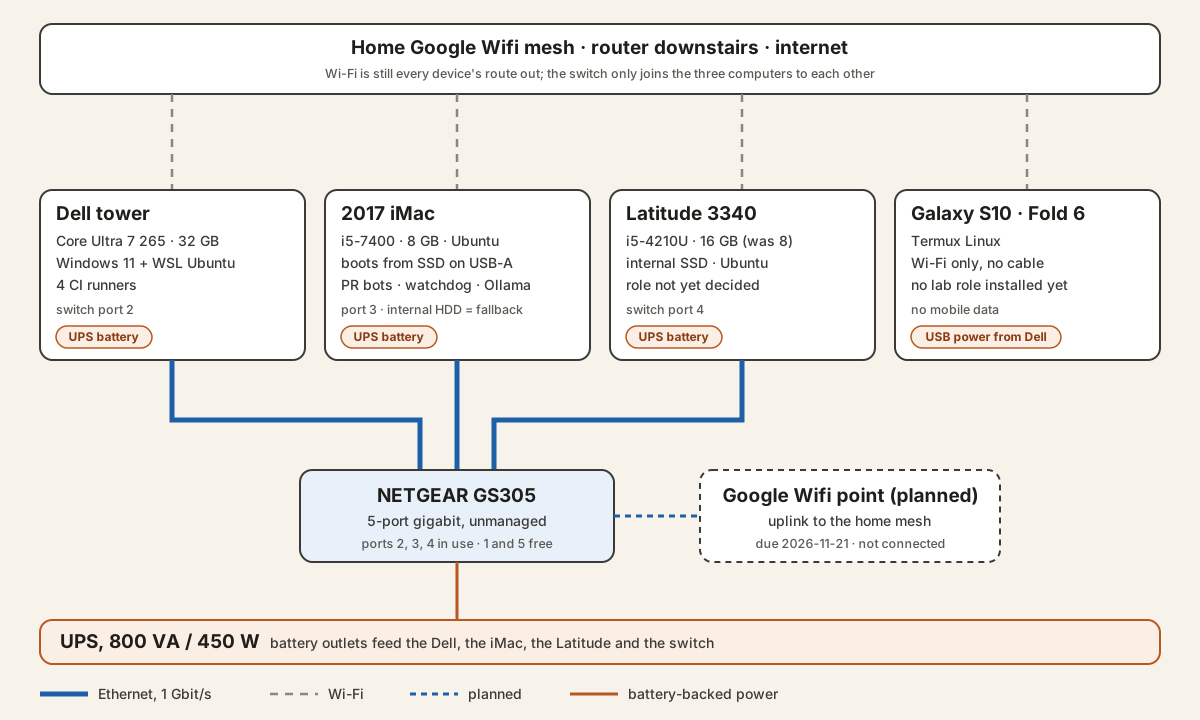
The lab today
Upgrade 1: the iMac moves onto an SSD
The iMac's internal disk is a 1 TB, 5,400-rpm laptop hard drive. Rather than open the case, we copied the running Ubuntu system file by file onto an SSK SD450 portable SSD and made that the boot disk, with the hard drive as a fallback.
| iMac, 5 cold runs each | Internal hard disk | External SSD |
|---|---|---|
| mirror, median (range) | 8.65 s (8.36–10.27 s) | 5.60 s (5.55–5.61 s) |
| tests, median (range), every run failed* | 16.91 s (15.94–19.08 s) | 13.06 s (12.86–13.30 s) |
* Every tests run on both disks ended with the same known failure (a test that trips only on a machine named like ours), so the comparison rests on mirror.
The copy job took 35 % less time, and its spread shrank from almost 2 s to 0.06 s. Same machine, commit and script, background services running both times: the disk is the likely cause, though our runs can't rule out everything else.
Three snags:
- The USB-C ports did not power the SSD under Linux. These Thunderbolt 3 ports never lit the drive under Ubuntu; a USB-A port worked at once, on a 5 Gbit/s link. We did not measure raw disk speed; the copy job is our only disk figure.
- Holding Option at startup showed no boot menu. From Linux,
efibootmgradded an entry for the SSD, a one-time "boot next" tested it, and the boot order now puts the SSD first. - The fallback is a stale copy. Without the SSD, the iMac would start the old system as it was on the morning of the move, so we disabled its scheduled jobs and model server. It still boots for emergency access.
Upgrade 2: the Latitude gets 16 GB
The Latitude 3340 shipped with two 4 GB sticks. We fitted a pair of 8 GB DDR3L-1600 modules, and the BIOS confirmed 16 GB in dual-channel mode.
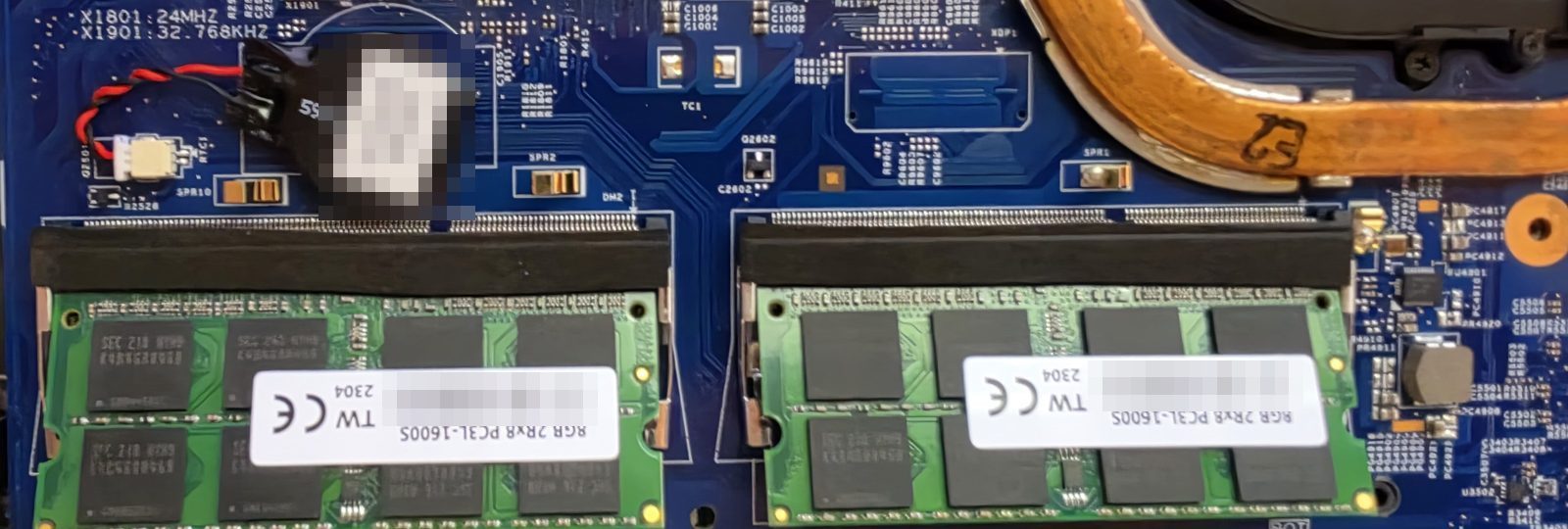

One full memtester pass over 13 GiB took 1 h 16 min and found nothing. Then we timed the same two jobs.
| Latitude, 5 cold runs each | 8 GB (the day before) | 16 GB |
|---|---|---|
| tests, median | 18.11 s | 18.25 s |
| mirror, median | 7.28 s | 7.66 s |
In these runs, doubling the memory showed no benefit. That comes with two limits. First, the pair isn't a controlled comparison: the 8 GB run did not record which disk its working files landed on, and we don't know why mirror came out 5 % slower at 16 GB. Second, we measured only the largest single process in each job, about 192 MiB, not the jobs' total memory use or the disk cache they lean on, so we can't say how close 8 GB came to being a limit. Both jobs ran fine at 8 GB, and 16 GB did not speed them up. Whether the extra memory pays off for several jobs at once, or for a model in Part 6, is still to be measured.
Upgrade 3: a gigabit switch
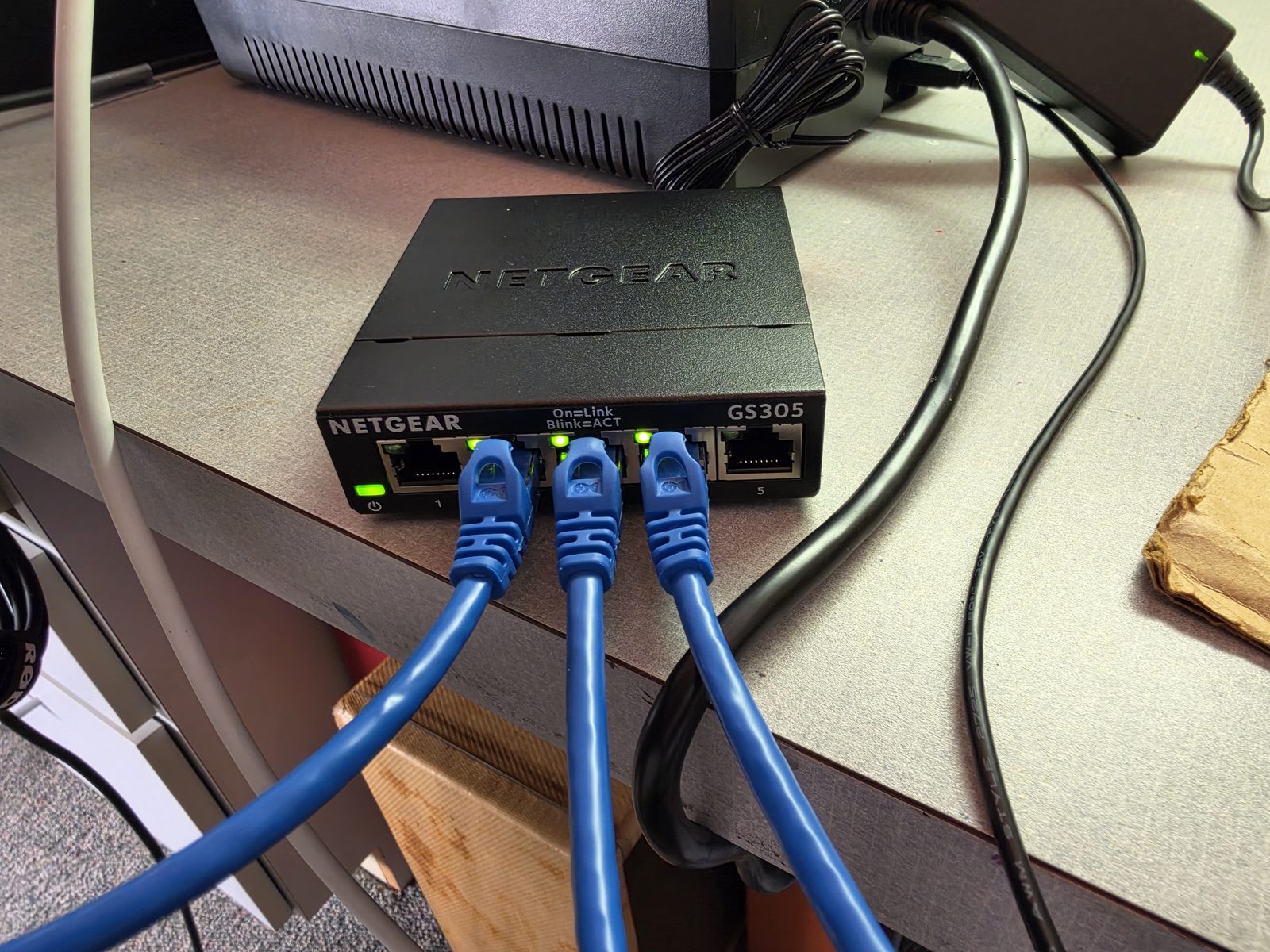
We cabled the three computers to a NETGEAR GS305, gave each a temporary address on it so test traffic could only take the cable, and sent 512 MiB three times each way. A MiB is 1,048,576 bytes; gigabit Ethernet tops out a little over 110 MiB/s.
| Over the cable (median of 3) | Latitude | Dell |
|---|---|---|
| To the iMac | 111.3 MiB/s | 111.0 MiB/s |
| From the iMac | 111.1 MiB/s | 112.6 MiB/s |
| Ping, average | 0.44 ms | under 1 ms |
| Over Wi-Fi (median) | Latitude, run A | Latitude, run B | Dell |
|---|---|---|---|
| Conditions | power saving on; band not recorded | power saving off; 2.4 GHz | other Wi-Fi use not checked |
| To the iMac | 6.5 MiB/s | 3.4 MiB/s | 4.7 MiB/s (2 of 3 runs) |
| From the iMac | 8.5 MiB/s | 5.7 MiB/s | 12.0 MiB/s |
| Ping, average | 113.8 ms | 15.4 ms | 10 ms |
Every wired transfer took 4.5–4.6 seconds. The completed Wi-Fi transfers took 42 to 149 seconds. One of the Dell's Wi-Fi uploads hit our three-minute limit after 416 MiB; we count it as incomplete and leave it out of the median, which is why that cell rests on two runs. Direction by direction, the cable carried 9 to 32 times what these Wi-Fi runs did.
The two Latitude runs differ in more than one way, so we can't pin their difference on a single cause. Run A's ping pattern matches what we measured on this laptop the day before with its Wi-Fi power saving on (a 103 ms average); in run B, with power saving off, it averaged 15 ms. Between the runs we turned power saving off and restarted the laptop, and it came back on the slower 2.4 GHz band, so run B's lower throughput could be the band, the time of day or both. The Dell's Wi-Fi uploads were well below October's, and we did not check what else was using its Wi-Fi. That variability is the point: within this one afternoon, same-size Wi-Fi transfers took anywhere from 42 to 149 seconds, while every cable transfer took 4.5–4.6 seconds.
The bonus fix: two minutes off every boot
The iMac took 2 minutes 41 seconds to start, almost all of it one service waiting for a network connection that never came: an Ethernet port with no cable (on the Latitude, a cable to a switch with no address server). Its journal shows this on every start since at least November 1. Marking each port optional in Ubuntu's network settings cut startup to 14.5 s on the iMac and 16.1 s on the Latitude. None of that saving came from the SSD; both iMac figures were measured after the move.
What the baseline says
| Before | After | |
|---|---|---|
| iMac, repository copy | 8.65 s | 5.60 s |
| iMac, startup (the network fix, both on the SSD) | 2 min 41 s | 14.5 s |
| Latitude, repository copy (not a controlled pair) | 7.28 s (8 GB) | 7.66 s (16 GB) |
| Machine to machine | 3.4–12.0 MiB/s on Wi-Fi | 111–113 MiB/s on the switch |
For this kind of work, storage and the network made measurable differences; the extra memory showed none in these runs. After the move to the SSD, the iMac's disk-heavy job ran a third quicker and far steadier (most likely the disk; our runs don't isolate it). The switch gave the three computers a gigabit path to each other. The Latitude's 16 GB did not speed up these two jobs, from a comparison we could not fully control.
What we have not tested: the switch's uplink to the home network (a mesh point is on order), any machine preferring its cable for everyday traffic, a controlled 8 GB run on the Latitude, or anything to do with models. That last one is Part 6: the shared-model experiment from Part 3 ran at 1.17 tokens per second over Wi-Fi, against 1.42 on the Dell alone. Now the cable between those two machines carries 9 to 24 times what this week's Wi-Fi did, and we want to know how much that changes.
Engineering notes from our own equipment, for readers doing the same on theirs. Every figure here comes from recorded console output on these machines.
Sources
- f3 (Fight Flash Fraud): tests whether a drive really holds the capacity it reports; f3probe was run on the SSD before use. github.com/AltraMayor/f3
- memtester: a userspace utility that writes and checks test patterns across a block of memory; one pass over 13 GiB was run on the new modules. pyropus.ca/software/memtester/
- efibootmgr: the Linux tool for reading and changing UEFI boot entries, used to add the SSD and set the boot order. github.com/rhboot/efibootmgr
- Netplan documentation: the optional setting, which lets an interface stay down without delaying boot (systemd-networkd-wait-online). netplan.readthedocs.io/en/stable/netplan-yaml/
